Linux Basic
Jean Monlong
29 March 2016
1 Introduction
1.1 What is Linux ?
- Free operating system for computers, similar to Unix (proprietary).
- Many bioinformatics programs run on Linux.
- Leading operating system on supercomputers and servers.
1.2 Why is it good ?
- Command-line instructions.
- Work with big files easily.
- Easier to develop and run specific tools.
- Write custom analysis (scripting).
2 What is a command ?
2.1 The terminal
- This is where you write and execute commands.
- Open a Terminal.
- A command looks like this:
commandName arg1 arg2 - Press Enter to run a command.
2.2 Example: Login through SSH
sshstands for SecureSHell.- To connect securely to a server.
- The address to connect to looks like :
<username>@<server>
> ssh -p 22 jmonlong@www.genome.med.kyoto-u.ac.jpExercise: Connect to the server (using your username).
2.3 Try some commands
> ls
> echo Hello
> man echolsLiSt the files in the current directory.manopen the MANual of a command. Useful to find details on arguments. Quit by pressingq.
2.4 Tips
- Press Tab to auto-complete commands or paths.
- Up/Down arrows to navigate through previous commands.
clearor Ctrl-L clear the screen.
3 Files and folders
3.1 Folder structure
At any moment you are in a directory, the working directory.
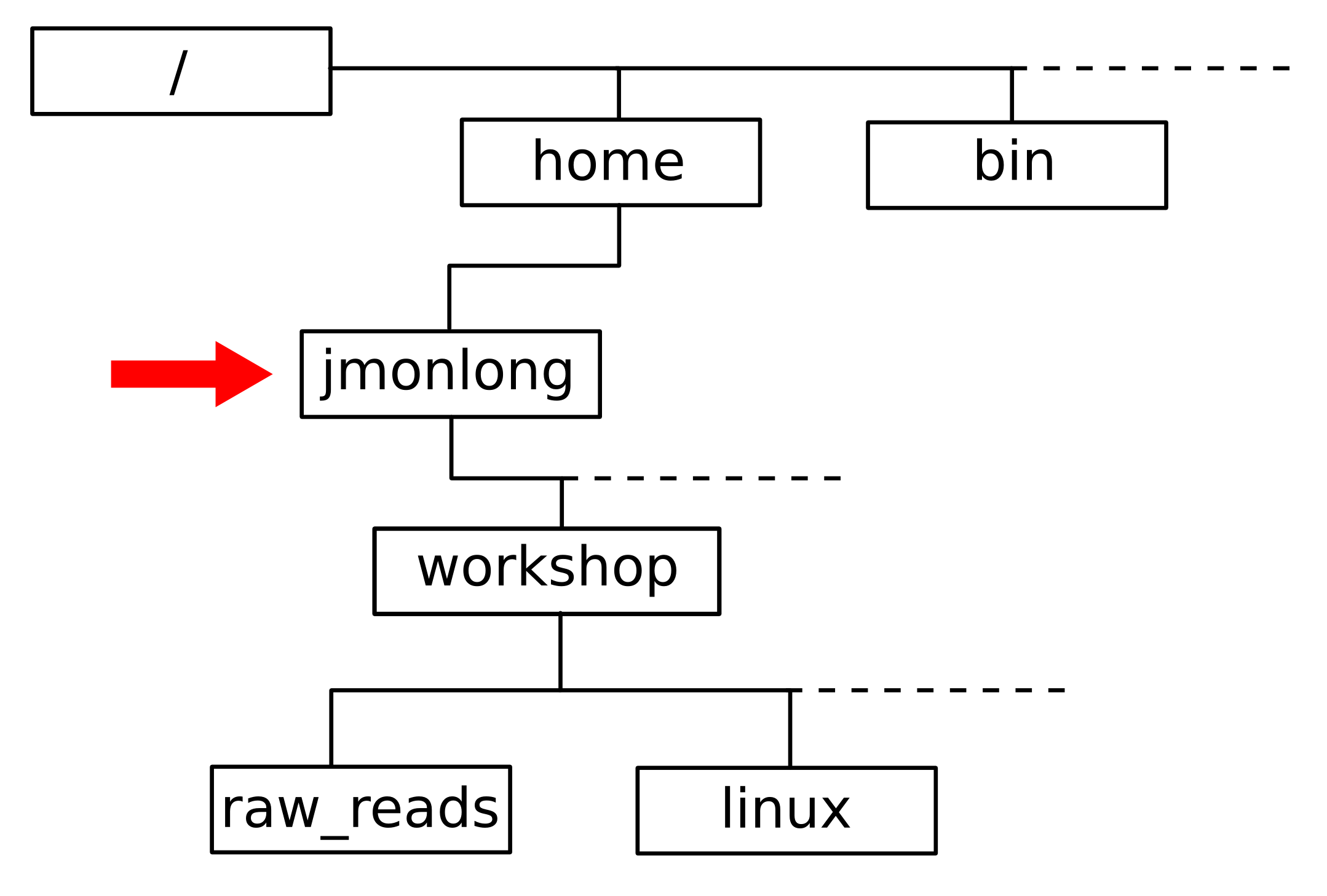
3.2 Moving through folders
pwdto Print the Wordking Directory.cdto Change Directory...represents the previous directory./is the directory separator.~represents your root folder.
> pwd
/home/jmonlong
> ls
workshop
> cd workshop
> pwd
/home/jmonlong/workshop
> cd ..
> cd workshop/linux
3.3 Exercise
- Print the working directory
- Create a directory
workshop. - Go to the
workshopfolder. - Create a directory
linux. - Go back to your root folder.
Note: mkdir to MaKe a DIRectory.
3.4 Solution
> pwd
> mkdir workshop
> cd workshop
> mkdir linux
> cd ..
3.5 Manipulate files
rmReMove a file.cpCoPy a file.mvMoVe a file.
> cp file1 file2
> rm file1
> mv file2 file3
3.6 Exercise
- Download the annotation file located at https://goo.gl/FLGAZH.
- Copy the file to the
linuxfolder. - Remove the file in the root folder.
- Go to the
linuxfolder. - Rename the file as
gencode.gtf(usingmvcommand)
Note: To download the file you can use:
> wget https://goo.gl/FLGAZH3.7 Solution
> wget https://goo.gl/FLGAZH
> cp FLGAZH workshop/linux
> rm FLGAZH
> cd workshop/linux
> mv FLGAZH gencode.gtf
4 Text files
4.1 Commands
head/tailprint the first/last lines of a file.catprint the entire file.lessto explore the text file.nanois a text editor. To open, change and save a file.grepretrieves lines containing a word or expression.wcretrieves the Word Count as well as the number of lines in a file.
4.2 Exercise
- Print the first lines of the annotation file.
- Explore the file using
less. Try using-Sargument. - How many lines are in the file ?
- Find the lines containing ENSG00000278267.
4.3 Solution
> cd ~/workshop/linux
> head gencode.gtf
> less gencode.gtf
> less -S gencode.gtf
> wc gencode.gtf
> grep ENSG00000278267 gencode.gtf
5 Compression
5.1 Commands
gzipto compress a file.gunzipto decompress a.gzfile.zless/zcat/zgrepareless/cat/grepdirectly on gzip files.tar -xzvf file.tar.gzto decompress and extract a.tar.gzfile.
5.2 Example
> gzip gencode.gtf
> zgrep ENSG00000278267 gencode.gtf.gz
> gunzip gencode.gtf.gz
> tar -xzvf archive.tar.gz
6 Pipes
6.1 Pipes
- To "pipe" the output of a command into another command.
- Using
|. - More than two commands can be piped.
> zcat gencode.gtf.gz | grep ENSG00000278267
> zcat gencode.gtf.gz | grep ENSG00000278267 | head
> zcat gencode.gtf.gz | grep ENSG00000278267 | less
6.2 Output redirection
- Instead of printing the results of a command.
- Use
>to redirect it to a file.
> gunzip -c gencode.gtf.gz > gencode.gtf
> ls -lh
> zcat gencode.gtf.gz | grep ENSG00000278267 | head > gene1.gtf
7 Extra
7.1 scp command
- Use SSH.
- Copy a file from a server to your computer.
- Run the command from your computer's terminal, NOT once connected to SSH.
- The address looks like this:
<username>@<server>:<pathToFile>
scp jmonlong@www.genome.med.kyoto-u.ac.jp:workshop/linux/gene1.gtf .7.2 * wildcard
*represent any possible character sequence.- Useful to manipulate several files with one command.
> ls
analysis.sh  graphs.R  results.csv  samp1.bam  samp1.pdf  temp1.log  temp1.txt  temp.txt.gz
> ls temp*
temp1.log  temp1.txt  temp.txt.gz
> rm temp*
> ls
analysis.sh  graphs.R  results.csv  samp1.bam  samp1.pdf
Caution: rm * removes every files.
7.3 Scripts
- Write commands in a
.shfile. - Run with
sh.
> sh myScript.sh